How to Import Contacts Into HubSpot Without Creating Duplicates
 By
By
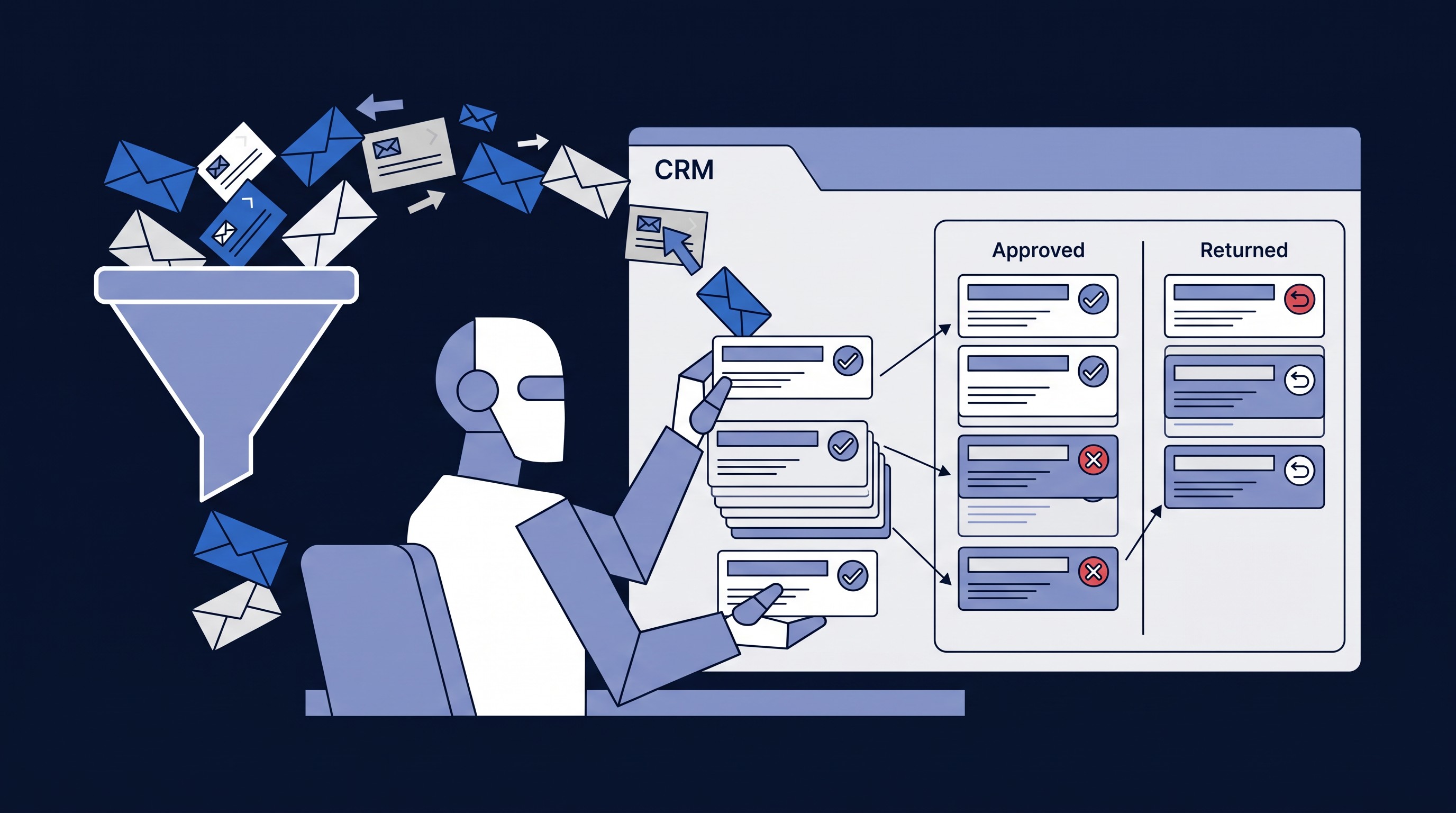
To import contacts into HubSpot without creating duplicates, make sure your import file uses email address as the unique identifier, run HubSpot's duplicate management tool before and after the import, and never import the same list twice without checking whether those contacts already exist. Most duplicate problems come from importing the same data through more than one channel — a CSV upload and a form submission, or two CSVs from different sources — without a consistent match key.
Step-by-step: a clean import
- Standardize your source file first. One email format, no leading/trailing spaces, no mixed casing that HubSpot might treat as distinct. Remove exact-duplicate rows in the spreadsheet before you ever open HubSpot.
- Check existing duplicates before importing. Go to Contacts → Actions → Manage duplicates, or Settings → Data Management → Deduplication, and clear out existing duplicate contacts so new records don't merge against messy data.
- Import via Contacts → Import. Choose "One file, one object" for a straightforward contact list, or "multiple files with associations" if you're importing companies and contacts together with relationships.
- Map email address as the primary match field. HubSpot uses email by default to detect existing contacts and update them rather than create new ones — confirm this mapping during the import wizard rather than assuming it's set correctly.
- Review the import summary. HubSpot shows how many records were created versus updated. A surprisingly high "created" count on a list you expected to mostly update is a sign the match key didn't work as intended.
- Run deduplication again after import. Even a well-planned import can surface a few duplicates, especially for contacts without an email address, which HubSpot can't match automatically.
Common mistakes
The most frequent cause of duplicates is importing contacts that don't have an email address at all — HubSpot has no reliable way to match those against existing records, so they're created fresh every time. Another common one: re-importing an updated version of a list without realizing the original import is still in HubSpot, effectively doubling every record that doesn't have an exact email match due to a typo or formatting difference. And teams sometimes import through both a native form submission and a manual CSV upload for the same event or list, creating two records for the same person before anyone notices.
When to bring in a pro
A single clean list with consistent email addresses is safe to import yourself. It's worth getting help when you're migrating from another CRM with unknown data quality, merging lists from multiple sources (a webinar platform, a trade show scanner, a CRM export) that likely already overlap, or dealing with an existing HubSpot portal that already has thousands of duplicate contacts you need cleaned up before any new import. Reach out if you'd like a data audit before your next import.
FAQ
Does HubSpot automatically prevent duplicate contacts?
It prevents exact email-address duplicates during import and form submission, but it won't catch near-matches (typos, different email domains for the same person) without manual review.
What if a contact doesn't have an email address?
HubSpot can match on other fields in some cases, but without an email address the match rate drops significantly — expect to review these manually after import.
Can I merge duplicates after they're created?
Yes — HubSpot's duplicate management tool suggests likely matches and lets you merge them, keeping the record history from both.
Will importing update existing contacts or create new ones?
If the match field (usually email) finds an existing contact, HubSpot updates that record instead of creating a new one — this is why confirming the match field during import matters.
Written by John Hulina, founder of CRM Assist and leader of the Orange County HubSpot User Group. John is also a CRMmys awards judge and has helped B2B revenue teams clean up and migrate CRM data across Salesforce, HubSpot, and Pipedrive.